Steam Download Stuck at 0 Bytes

Tens of millions of gamers around the world use Steam on a daily basis. It is the best way to connect with their game friends, maintain their game library and, of course, uncover new and exciting games to play. However, Steam is not that different than other software when it comes to bugs – it is possible to encounter weird behavior now and then. One of the most annoying bugs that users tend to report is the Steam Download Stuck at 0 Bytes bug. This issue may prevent you from playing the game you have been trying to download, and it does not go away even after waiting for 15-20 minutes. So, what do you do when the Steam download is stuck at 0 bytes for no apparent reason? Below, we will go over some of the recommended troubleshooting steps.
Table of Contents
Pause and Resume the Download
One of the common fixes that work is pausing the download temporarily, and then starting it again. This forces Steam to re-establish the connection to the download server, and this may often end up resolving the Steam Download Stuck at 0 Bytes issue. Right-click the game being downloaded and select Pause. After this, do the same, but this time select Continue Download.
Reboot the App to Fix the Steam Download Stuck at 0 Bytes Bug
Another fix that you could try is restarting Steam completely. Do not worry, you will not lose your download progress when doing this. To restart the app, simply right-click the Steam icon in the taskbar, and select Quit. Then, double-click the Steam icon to boot up the app again.
Use a Different Download Region
In order to provide users with good download speeds, Steam hosts their data on multiple servers spread around different countries. By default, Steam will select the region nearest to you. However, if something happens to this server's connectivity, it may result in the Steam Download Stuck at 0 Bytes bug. To make sure this is not the cause of the problem, we suggest that you switch to a different Steam download server temporarily:
- Open Steam -> Settings.
- Select the Downloads tab.
- Use the Download Region drop-down menu to select a different server near you.
- Click OK to confirm the changes.
Disable VPN Services to Fix a Stuck Steam Download
If you have any VPN running in the background, you may want to try disabling it temporarily. It may have a negative impact on Steam download speeds, and it may occasionally terminate the connection entirely.
Use Steam to Verify the Integrity of the Game’s Files
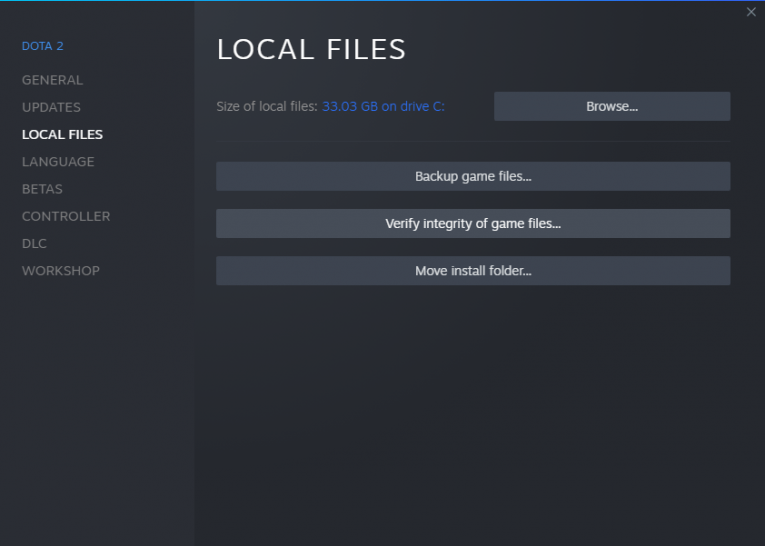
If one of the files Steam was downloading ended up being corrupted or broken in some way, this might cause the app to bug out and result in the Steam Download Stuck at 0 Bytes issue. Open Steam -> Library and right-click the game that you are trying to download. Select Properties -> Local Files and use the Verify Integrity of Game Files option. It may take a few minutes to complete, depending on the size of the game.
Steam Games Won't Start - we have fixes to help you.