Black Screen After Launching League of Legends
League of Legends (LoL) is one of the most popular Multiplayer Online Battle Arena (MOBA) games. If you are playing the PC version of the game, then you might already know that plenty of users are complaining about the League of Legends launcher, as well as the stability and performance of the game. One of the common issues that LoL players appear to encounter is a black screen after launching League of Legends. Sometimes, a simple restart is enough to solve the issue, but this might not always be the case. If the issue persists, then you will need to explore more detailed troubleshooting methods.
Table of Contents
What Could Cause the Black Screen after Launching League of Legends?
There are plenty of opinions from disgruntled users who are annoyed by this issue. There is no consensus about the probable cause, and it seems that solutions can be vastly different for most users. For example, some League of Legends players claim that the issue is caused when you try to launch the game in either full screen or windowed mode. Their solution is to press Alt + Enter after the black screen appears – this is the Windows shortcut to toggle between full screen and windowed mode.
Others claim that a driver update fixed the issue for them, and this certainly makes sense – outdated or corrupted drivers could cause issues like the black screen after launching League of Legends. But enough about the probably causes, let's get to the point - the best ways to troubleshoot the black screen after launching League of Legends issue.
Run League of Legends as an Administrator
Some applications tend to bug out if you launch them with limited privileges on Windows. League of Legends is not an exception, and you may want to consider running the game as an administrator. To try if this solution works, right-click the League of Legends shortcut, and select Run as Administrator. Did this solve the issue? If the answer is yes, then you can make this change permanent:
- Right-click League of Legends and select Properties.
- Switch over to the Compatibility tab.
- Check the box next to Run this program as an administrator.
- Press Apply -> OK to confirm the change.
Turn off Display Scaling for League of Legends
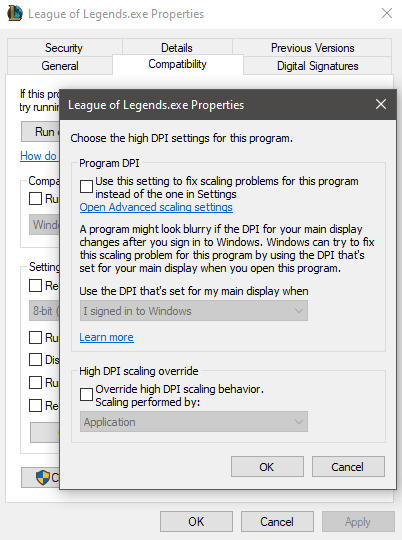
This is one of the common recommendations for gamers who experience stability or performance issues with their favorite games. For some reasons, the Windows Display Scaling setting may sometimes cause unexpected conflicts and bugs. We recommend trying to solve the black screen after launching League of Legends issue by turning off display scaling:
- Right-click the League of Legends icon and select Properties.
- Go to Compatibility -> Change high DPI settings.
- Mark the box that says Override high DPI scaling behavior. Set the setting below to Application.
- Press OK twice to confirm the changes.
Apply Windows Updates to fix the Black Screen Issue in League of Legends
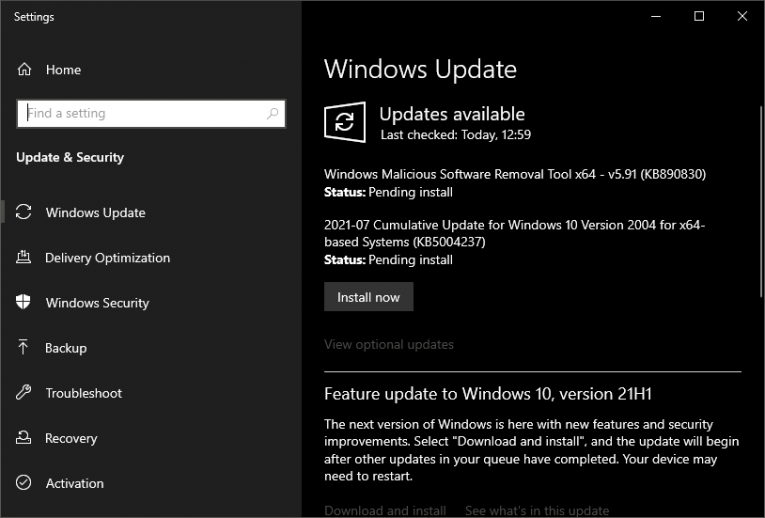
Using an outdated version of Windows may cause some conflicts and issues with particular service and software. We advise you to keep your Windows up-to-date to minimize the odds of encountering the black screen after launching League of Legends issue.
Learn how to fix other League of Legends issues like the 'PVP.net Patcher Kernel has stopped working' Error and the How to Fix Unexpected Login Session Error in League of Legends.