How to set up iMessage on Mac
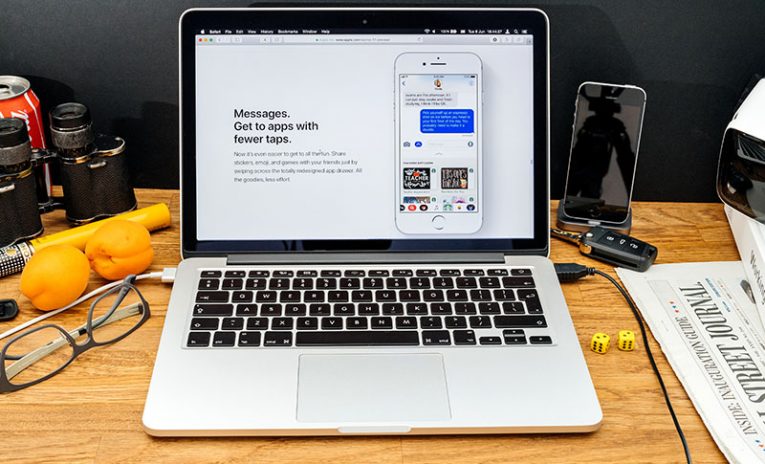
Messages, previously known as iMessage, is one of the default apps that you find on any Mac. It is great for sending text and media messages to other owners of Apple devices. iMessage is synced across your phone, laptop and tablet, ensuring that you will be able to talk to friends and colleagues from anywhere. However, before you start using iMessage, you will need to learn how to set up iMessage on Mac. This should be a relatively easy task, just follow these steps:
- Go to Finder -> Applications and open Message or iMessages (depending on your macOS version.)
- You will be prompted to enter your Apple ID and password. Make sure to use the same ones that you are using for your device.
- iMessages should load shortly. Go to Preferences -> Accounts and enter the phone number and email address you use on other devices.
- Ensure that Text Message Forwarding is active on your iOS devices. This way, you will see the same chats across all devices.
Managed to Set Up iMessage on Mac, but experiencing issues?
And this is all it takes to set up iMessage on Mac, and sync it across devices. You will be able to chat from anywhere, so you will not have to constantly look for your phone when you want to send a message. If you are experiencing any issues with iMessage, you can check our guides on how to troubleshoot iMessage not working on Mac and iMessage 'Waiting for Activation' Error.
To avoid issues with iMessage, we advise you to apply Apple's software updates regularly. This is the best way to ensure that your operating system is in optimal shame and that you will not encounter bugs with the software you use.