6 Important Security Features for iOS 12 Users
Did you upgrade your iPhone, iPod, or iPad to iOS 12 already? Even if you have not made the jump yet, you might have heard that this version of the operating system has several improvements that can enhance overall security and even prolong your device's battery life. So far, the only update to the operating system has been iOS 12.1, but new upgrades will come in time. If you continue reading, you will learn how to use iOS 12 and how to exhaust everything that it has to offer. Of course, our main focus is on iOS 12 security features because, after all, security is usually the number-one concern for all users of mobile devices. It has been reported that nearly 2 million malicious installation packages were detected during the second quarter of 2018. This is a shocking number, but malware is not the only thing we need to worry about. We simply cannot ignore phishing attacks, data breaches, and other mobile security threats! The good news is that the iOS 12 security is completely in your hands.
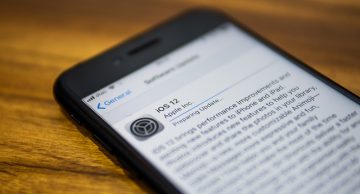
1. Updated devices are secure devices. This shouldn't be anything new. Updates are not created to use up more space. They are created to patch security vulnerabilities and fix issues that might be, for example, slowing down your device or making it run disorderly. iOS 12 security is as strong as the updates that are applied, which is why you need to be diligent about installing all updates. One thing that you can do to make the process smoother is to enable automatic updating. In the past, users would have to download and install updates manually, which, unfortunately, meant that they often skipped or delayed extremely important updates. Now, all you have to do is go to Settings->General->Software Update and turn Automatic Updates on. Note that the feature is turned off by default. Though it is an extremely simple thing you can do, there is no doubt that updates installed on time can certainly enhance iOS 12 security.
2. Strong passcodes can stop intruders. How many times have you heard that setting up strong passwords is important? Probably, thousands of times. Unfortunately, sometimes when you hear something over and over again, it loses any real meaning or worth. Well, here we go again: Setting up strong passwords is very IMPORTANT. Fortunately, iOS is done with a four-digit passcode. Now, you have to remember six digits by default, and although that might not seem like a huge improvement, it certainly is a step in the right direction. What is even more exciting is that you can create longer passcodes too! Go to Settings->Face ID & Passcode/Touch ID & Passcode and enter your set passcode. After this, go to Change Passcode->Passcode Options->Custom Numeric Code and create a passcode that is as long and as random as possible.
Do you know why longer passwords are considered to be safer? That is because it is harder to guess or brute-force them. Needless to say, if you put 000000 as your passcode – as one person infamously did – anyone could get into your device, including your family members, sneaky coworkers, and thieves. Mobile devices are stolen all the time, and so you want to take measures that would ensure iOS 12 security. Remember that the more random the password is, the more secure it is. If you are afraid you could forget an entirely random and long password, use Private Notes in the free Cyclonis Password Manager to keep it safe.
3. Expect the best, prepare for the worst. This tip continues the topic of physical theft. Whether you are backpacking across Asia or you are grabbing lunch at your local cafe, you could become a victim of theft. Luckily, you can protect yourself. Do you know how to use iOS 12 to prepare for the worst? One thing you can do is enable the Find My iPhone feature. Although it is not a new feature, it certainly can aid you in enhancing overall iOS 12 security. Go to Settings->your Apple ID->iCloud->Find My iPhone. Turn on the Find My iPhone and Send Last Location features. Once you set this up, if your phone ever gets stolen or lost, you can use your Apple account in icloud.com to find it. Another thing you can do is set iOS 12 security settings so that all data is deleted if someone fails to guess the passcode 10 times in a row. Go to Settings-> Face ID & Passcode/Touch ID & Passcode and then turn on Erase Data. Since this could create problems if, for example, you forgot your passcode, you really should look into using a reliable password manager.
4. Do NOT be afraid of 2FA. 2-factor authentication can be annoying and even intimidating, but your iOS 12 security might depend on it. Let's say all measures discussed previously fail you, and an unauthorized party obtains a passcode; however, they should be unable to access your accounts if 2-factor authentication is turned on. If you want to learn more about 2FA in general, click here. In the past, the authentication process on iOS was complicated by “logistics,” as one would have to memorize the code and then quickly enter it to log in. Now, the process is basically automated, as the SMS with the verification code is added as an autofill option. How you set up two-factor authentication depends on the apps you are securing, but if you have the option, choose to receive verification codes via SMS. With the feature on, when you enter the login credentials on a chosen app, you are routed to the verification screen. Once the code is sent, a message pops up on the screen, and all you have to do is tap the From Messages code available at the bottom to log in.
5. Apps can be a friend and a foe. If you care about your security, you want to be careful about the apps you download. That includes iOS 12 security apps too. While it probably is safe to install such well-known apps as Skype, Instagram, or YouTube, you have to be more cautious about unfamiliar apps, especially those that do not have many reviews and that are not popular. Spare a few minutes to “google” the app you are interested in, and if nothing alarming comes up, go ahead with the installation. Terminate the process if the app is asking to access your location or any kind of private information. You should be particularly cautious about apps that do not have an obvious reason for needing this kind of data. Note that you can disable the device from tracking your location too. Go to Settings->Privacy->Location Services->Share My Location and turn the feature off. If you want to enhance iOS 12 security further, you can also look into apps that might aid you. For example, reliable VPN apps can protect you while browsing the web.
6. How to use iOS 12 Backup and USB Restricted Mode. Backing up data can be very useful in many different situations. Whether you are upgrading devices, someone stole your device, or you want to enhance iOS 12 security, you certainly should look into backing data up. Go to Settings->your Apple ID->iCloud->iCloud Backup and turn the feature on. Also, tap Back Up Now. If anything goes awry, you can restore your device with a single tap. If you are worried about backing up important data on some invisible cloud drive, do not worry because data is safely encrypted, and no one can read it that easily. When it comes to USB Restricted Mode, this feature can ensure that no one can connect any kind of device to your iOS 12 device. Go to Settings->Face ID & Passcode/Touch ID & Passcode->USB Accessories and turn the toggle off. As long as all data is encrypted, and no devices can be connected to obtain it, your iOS 12 security should stay strong.
The security of iOS 12 should matter to you if that is the operating system you are using, and there are plenty of security features for you to explore to ensure that you and your data are safe. If you still have questions regarding how to use iOS 12 security features, let's continue the discussion in the comments.