Thank you for downloading Cyclonis Password Manager!
If your download doesn't automatically begin in a few moments, please click the "Download" button below.
* See Free Trial offer below. EULA, Privacy Policy and Cookie Policy.
Did your Cyclonis Password Manager download/install not start automatically?
Click here to learn how to resolve issues downloading Cyclonis Password Manager.
For more information on Cyclonis Password Manager and to better understand our policies, please review our EULA, Privacy Policy and Discount Terms. If you have any questions, please visit our FAQ and Help File. If you no longer wish to use Cyclonis Password Manager, you may follow these steps to uninstall Cyclonis Password Manager from your device.
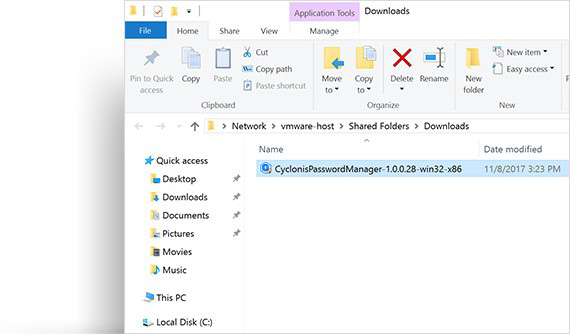 Double-click the CyclonisPasswordManager-Installer.exe file to launch it.
Alternatively, you may right click on its icon and then select Run.
Double-click the CyclonisPasswordManager-Installer.exe file to launch it.
Alternatively, you may right click on its icon and then select Run. 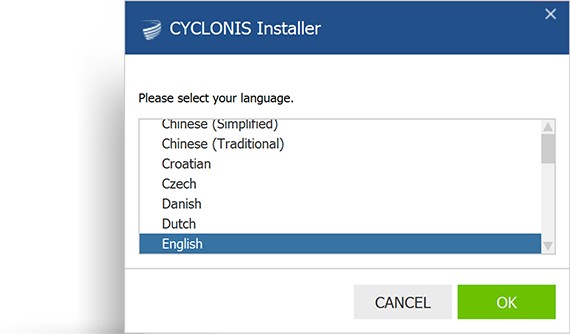 When the Select a language window appears, choose your preferred language from the available options.
 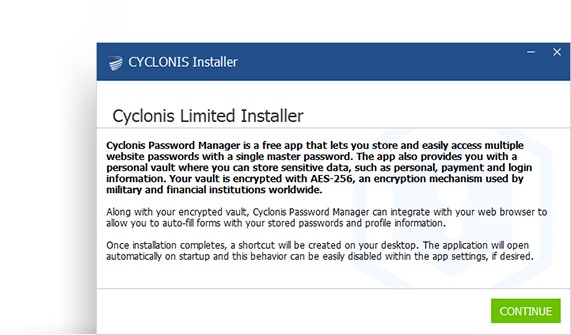 A window that gives you some information about the Cyclonis Password Manager and its features will appear.
Read through it and click Continue.
A window that gives you some information about the Cyclonis Password Manager and its features will appear.
Read through it and click Continue. 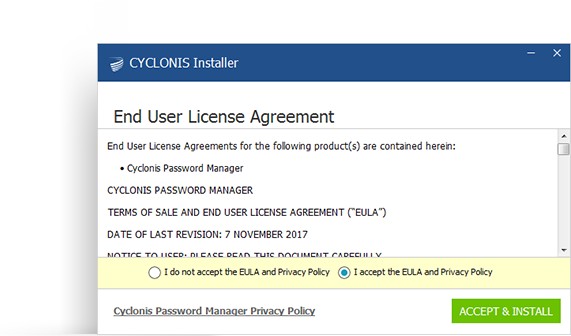 A window displaying Cyclonis Password Manager’s EULA, Privacy Policy and Discount Terms will appear.
Take the time to carefully read through the EULA, Privacy Policy and Discount Terms.
A window displaying Cyclonis Password Manager’s EULA, Privacy Policy and Discount Terms will appear.
Take the time to carefully read through the EULA, Privacy Policy and Discount Terms. 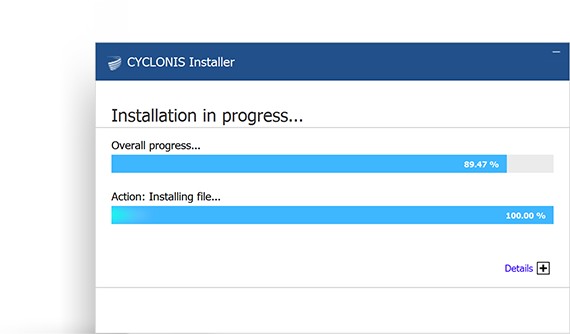 Wait for the program installation to complete. This may take a few minutes.
 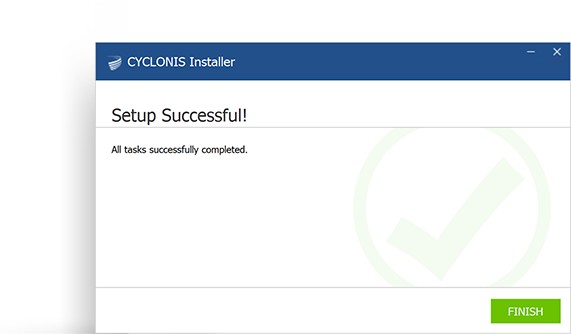 A window will appear to notify you that the installation process is complete. Click Finish.
 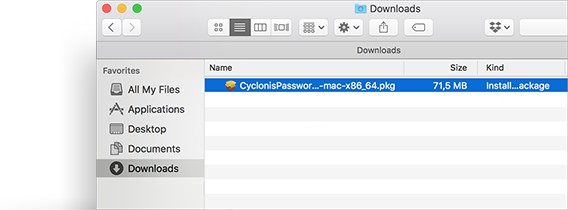 Open the download location of Cyclonis Password Manager’s CyclonisPasswordManager-Installer.pkg file.
 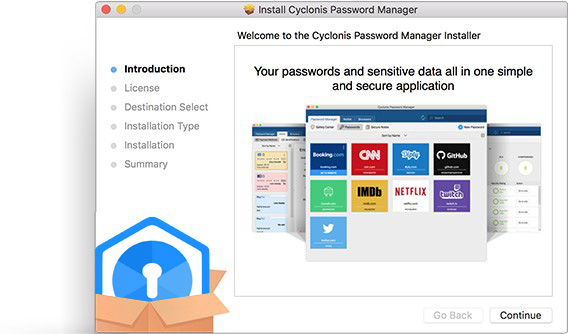 An Introduction window should appear. Click Continue.
 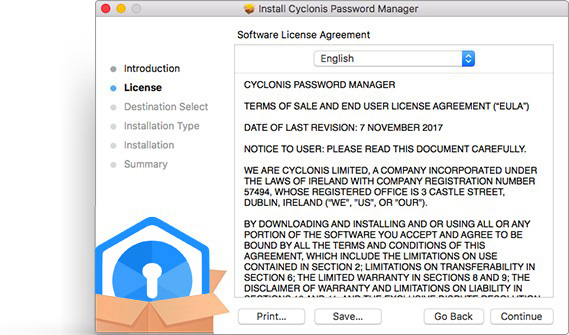 A window displaying Cyclonis Password Manager’s EULA, Privacy Policy
and Discount Terms will appear. Take the time to carefully read through
the EULA, Privacy Policy and Discount Terms.
A window displaying Cyclonis Password Manager’s EULA, Privacy Policy
and Discount Terms will appear. Take the time to carefully read through
the EULA, Privacy Policy and Discount Terms. 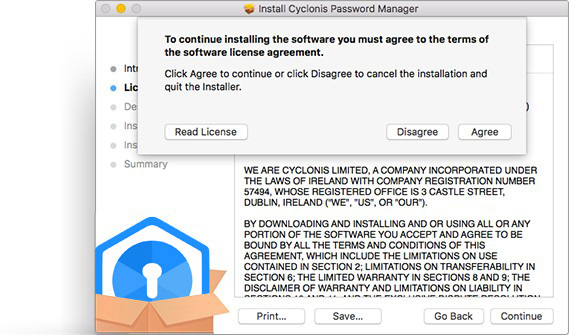 If you agree with all the terms and conditions of the EULA, Privacy Policy
and Discount Terms, proceed forward by clicking Continue and confirm
that you agree by clicking Agree in the popup that appears.
If you agree with all the terms and conditions of the EULA, Privacy Policy
and Discount Terms, proceed forward by clicking Continue and confirm
that you agree by clicking Agree in the popup that appears. 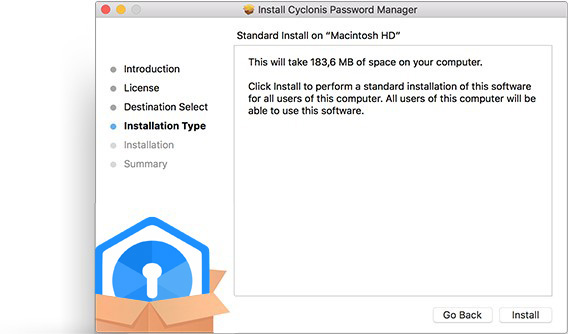 You will now see a window titled Standard Install on Macintosh HD.
Click the Install button to proceed.
You will now see a window titled Standard Install on Macintosh HD.
Click the Install button to proceed. 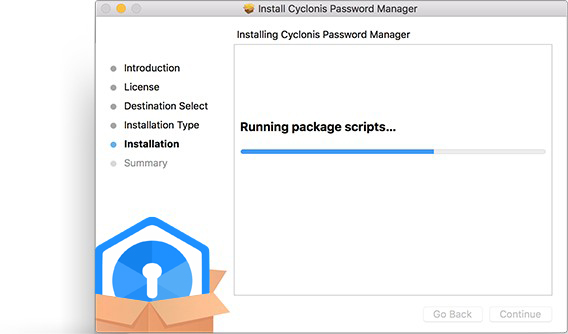 Wait for the program installation to complete. This may take a few minutes.
 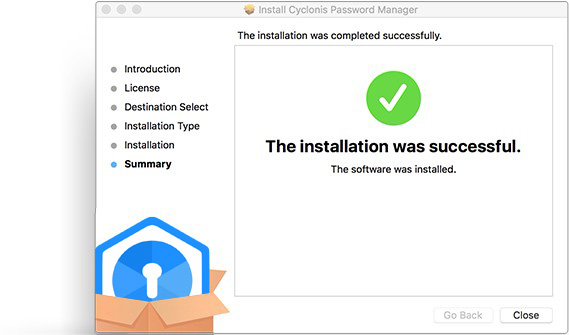 Once Cyclonis Password Manager has been successfully installed, a window
will appear to notify you that the installation process is complete. Click Close.
A window will appear to notify you that the installation process is complete. Click Close.
Once Cyclonis Password Manager has been successfully installed, a window
will appear to notify you that the installation process is complete. Click Close.
A window will appear to notify you that the installation process is complete. Click Close. 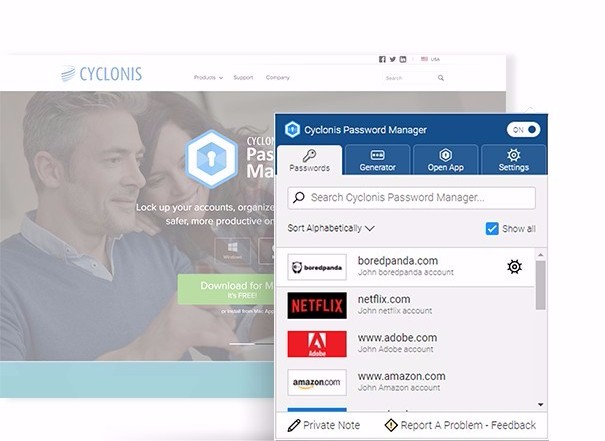
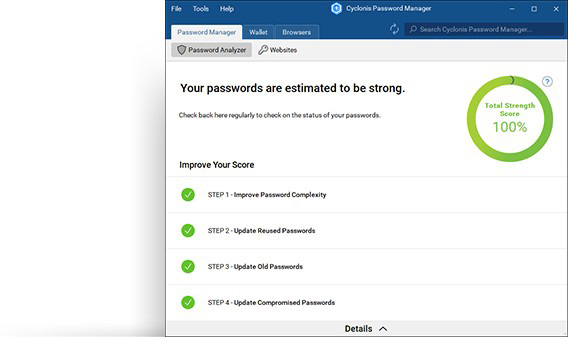 From the main application screen, click on the Browsers button.
 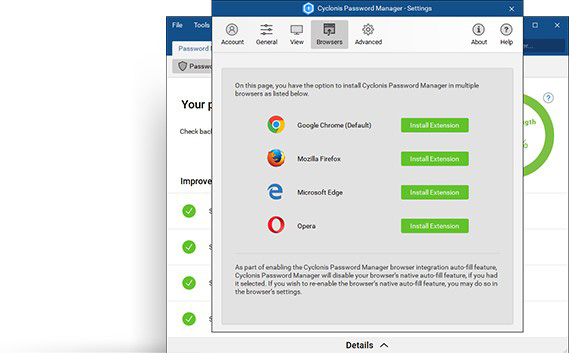 The window that appears will list supported browsers currently installed
on your system. Click on the green button labeled Install
Extension that is located next to the Chrome logo, if present (If the
Chrome extension is already installed, the button will be labeled
Uninstall Extension).
The window that appears will list supported browsers currently installed
on your system. Click on the green button labeled Install
Extension that is located next to the Chrome logo, if present (If the
Chrome extension is already installed, the button will be labeled
Uninstall Extension). 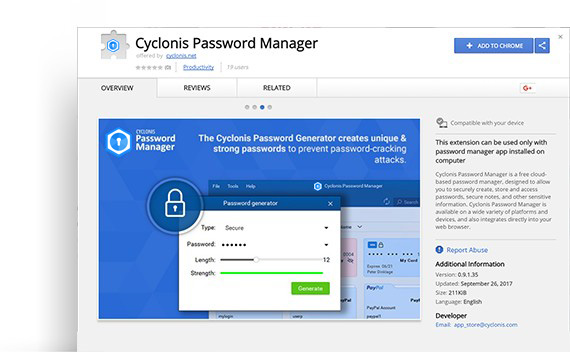 The Chrome browser should open, and a blue + Add
Extension button should be visible at the top right corner of the
window. Click it to install the extension.
The Chrome browser should open, and a blue + Add
Extension button should be visible at the top right corner of the
window. Click it to install the extension. 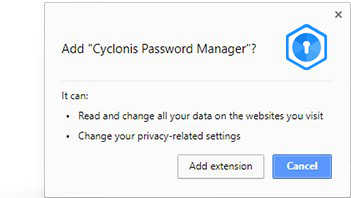 A smaller pop-up window titled Add Cyclonis Password
Manager? will then appear and ask you to confirm that you want to add
Cyclonis Password Manager to your browser. Click
Confirm.
A smaller pop-up window titled Add Cyclonis Password
Manager? will then appear and ask you to confirm that you want to add
Cyclonis Password Manager to your browser. Click
Confirm. 



