'PFN_LIST_CORRUPT' Windows Error

The Windows Blue Screen of Death (BSOD) has always been known as one of the scarier errors computer users can encounter. While the Windows 10 BSOD looks 'friendlier' than older versions, it is still used to report serious issues. One of these issues is the 'PFN_LIST_CORRUPT' Windows Error, which appears to trouble dozens of users on a daily basis. If your PC suddenly interrupts you with a blue screen saying 'PFN_LIST_CORRUPT,' then you might need to get to troubleshooting right away. Other common BSOD errors that users encounter are 'CRITICAL_PROCESS_DIED' Windows Error and the 'PAGE_FAULT_IN_NONPAGED_AREA' Error.
Thankfully, the PFN_LIST_CORRUPT error is unlikely to be caused by faulty hardware – but there is still a minor chance that this might be the cause. Typically, users report that a recent driver or software package turned out to be the cause of the problem.
Table of Contents
What does the PFN_LIST_CORRUPT Message Mean?
PFN stands for Page Frame Number. This is an internal Windows database, which keeps track of all physical memory pages in your Windows. This list enables the operating system to quickly choose the optimal physical memory pages to use, reuse, or unload. If it gets corrupted, however, you are likely to encounter the 'PFN_LIST_CORRUPT' Windows Error. Usually, this happens just once, and the issue fixes itself after a restart. If, however, it persists, then you need to try to find a fix.
Update Drivers to Fix the 'PFN_LIST_CORRUPT' Windows Error
Since a faulty driver is the likely cause of the problem, your first job should be to update all available drivers. You can take care of this task in several ways:
- Manually download the latest version from your hardware manufacturer's website.
- Use an automated driver updater.
- Manually update drivers through the Windows device manager.
Some helpful articles on the topic of driver updates are How to Update Your SD Card Reader Driver and How to Update USB Drivers.
Use the Windows BSOD Troubleshooter
Windows has an embedded tool to help you troubleshoot issues causing Blue Screens of Death. Head to Settings -> Update & Security -> Troubleshoot. Select BSOD on the left, and then click Run the troubleshooter. Follow the instructions and wait for the task to finish – it should not take more than a few minutes. If Windows finds a fix, it will let you know.
Run the Windows Memory Diagnostic App
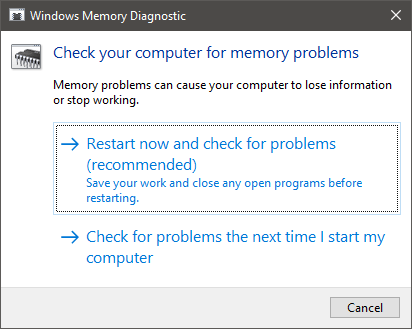
Since faulty RAM could also be an issue, we advise you to run the Windows Memory Diagnostic app. There are 3rd-party memory checkers, but the one integrated in Windows works just fine as well. To start it, go to Start Menu -> Windows Memory Diagnostic. Then, click Restart now and check for problems to initialize the process. Usually, this takes 5-10 minutes – your computer will restart automatically after the task is done.
Run the Windows Hard Drive Diagnostics
After checking the memory, it is time to check another piece of hardware – your hard drive. Go to Start Menu -> Command Prompt. Enter the command chkdsk /f and press Enter. Windows will now scan your hard drive for issues and attempt to resolve any problems it finds.
Run SFC and DISM Scans
These two scans will try to identify and fix issues with your operating system. Both of them are started through the Command Prompt, so start by opening it. Next, type these two commands:
- sfc /scannow
- DISM /Online /Cleanup-Image /RestoreHealth
Each one should take a few minutes to complete, so wait them out.