Macbook Keyboard and Trackpad Not Working
Your Mac keyboard and trackpad are essential peripherals, which make it possible to enjoy your Mac's features and content. Needless to say, having any of them stop working may be quite a problem to deal with. Our advice to you is to make yourself familiar with the best tips on what to do if your mac keyboard or trackpad are not working. By remember these troubleshooting tips, you will be ready to solve such issues as soon as they appear.
Mac Keyboard Not Working
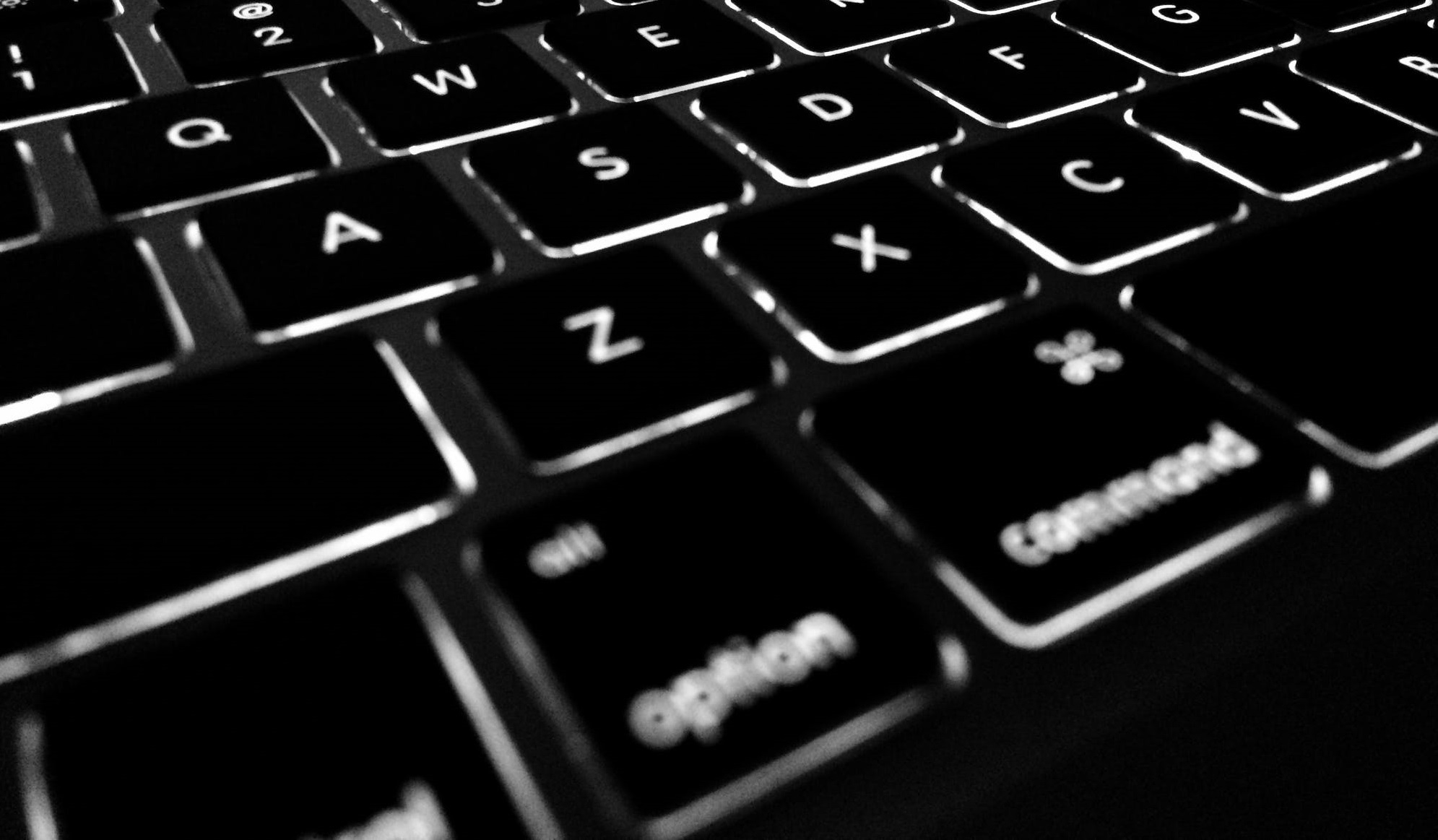
If your keyboard is not working, then you should start with the simplest troubleshooting method – restart your device. Hardware and software bugs do happen, and often the easiest way to resolve them is an old-fashioned restart.
If the above tip does not help, then you should see if there are any pending updates for your Mac or any of your software. While this is rarely the cause of such problems, it is not out of the question. Head to the App Store -> Updates section to see if there are any updates available. Also, make sure that your Mac is automatically performing such checks by going to System Preferences -> App Store and activating the box next to Automatically check for updates.
Did you install any new software before the issue occurred? Low-quality apps or unexpected software conflicts may lead to problems such as your Mac keyboard not working. If you installed anything before your keyboard stop working, then we advise you to uninstall it immediately – How to Uninstall Apps on Mac.
Mac Trackpad Not Working
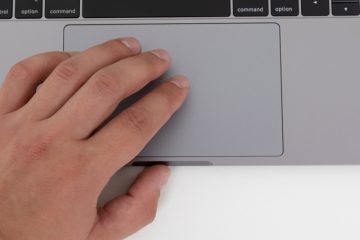
Troubleshooting the trackpad on your Mac is not much different compared to the tips we used to try and fix the keyboard. Start by rebooting your device, and also try to close and re-open the lid.
Another thing to try is to disable the Force Click option, which may sometimes cause unexpected interferences. On your Mac, head to Apple Menu -> System Preferences -> Trackpad. Open the Point & Click tab and then deselect the options Force Click and Haptic Feedback.
The next thing to try is to reset the Mac's SMC and PRAM (or NVRAM.) SMC stands for System Management Controller – a component meant to store various hardware and software settings, including those for your trackpad. By using our guide on How to Reset a Mac's PRAM and SMC, you may be able to fix your trackpad.