Hard Drive Not Showing Files
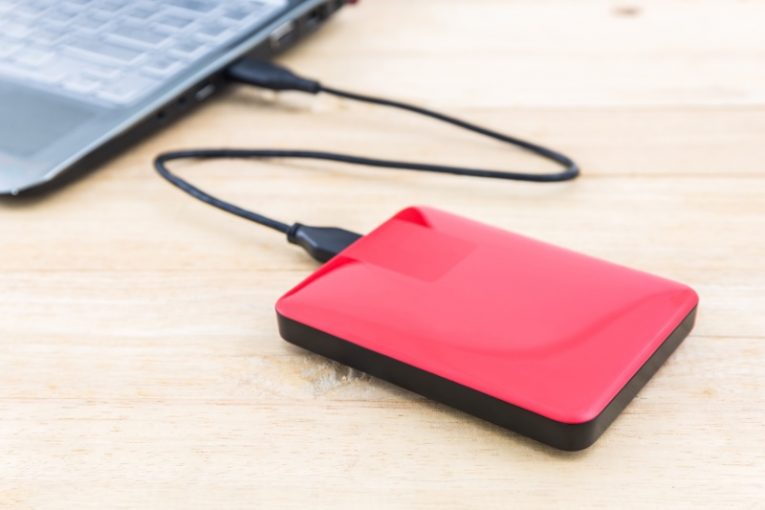
External hard drives have become something of a necessity in recent years. With digital video captured even on a regular mobile phone growing exponentially in file size and with digital photos sometimes taking several megabytes each, storage space is becoming scarce.
However, due to their design, nature and connections, external hard drives are prone to exhibiting a lot more seemingly random issues than regular hard drives and SSD disks. This article will give you a few ideas you can try if you can't access files on your external hard drive or if you are having issues with it.
-
Table of Contents
Check cable connections
As with all external devices that are not inside your PC's case, the first thing you should do is check the cable connections. Make sure the cable is plugged properly both into the device and into your PC.
-
Eject and reconnect
In some cases, ejecting the connected hard drive through the Windows file explorer will fix visibility issues. Open your My Computer, right click on your connected external hard drive and select "Eject".
Next, unplug the cable, then plug it back in and wait for the device to show up. A seemingly simple "turn it off, then on again" fix sometimes works surprisingly well.
-
Update drivers
Some external drives will require drivers to function. Your best bet in this case is to visit the manufacturer's website, find the external disk driver corresponding to your operating system and download the driver installer package.
Run the installer, wait for the driver to completely install, reboot your PC and then try connecting your external hard drive once again.
-
Use the Windows disk checking utilities
Open your start menu, type in "cmd" and once the Command Prompt app icon shows up, choose "Run as administrator" in the panel on the right.
Once the text terminal shows up, type in the following command, where X is your external drive's assigned letter, as determined by Windows:
chkdsk X: /f
This will run the disk-checking tool Windows has built inside it. Wait for the process to finish and attempt to repair any bad sectors or corrupt sectors and data on your device.
If neither of those options work, you may be dealing with a hardware issue and it might be a good idea to take your external drive to a qualified hardware technician.