Spotify Slow on Mac

Spotify is the largest music streaming service, used by tens of millions of people around the world. It is compatible with a wide range of computer and mobile operating systems, including macOS. While Spotify Slow on Mac's performance is usually very good, some Mac users report that Spotify is running slow on their devices. The Spotify being slow on Mac issue may mean that playback is lagging or that the app is failing to launch/work reliably. If you are also experiencing issues with Spotify on Mac, then we have some tips on how to enhance the performance.
Table of Contents
Why Could Spotify be Slow?
Often, the issue might be because of your computer's hardware. For example, if you are running to many applications in the background, there might not be enough hardware resources to run Spotify reliably. In addition to this, lack of disk space is another common cause of the problem – Spotify's cache can be very large in size, and not having enough free space may result in performance issues.
Fix Spotify Being Slow on Mac by Reducing Streaming Quality
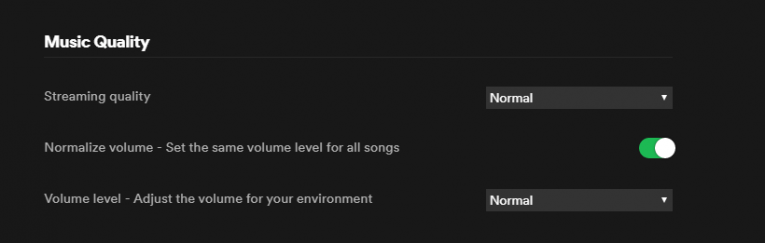
Both network and hardware issues might be resolved by slightly reducing the quality of the audio Spotify streams. This might sound like a major issue, but you are unlikely to spot a difference unless you are using a high-end audio setup. Head to Spotify -> Preferences -> Music Quality and set it to either Low or Normal. This change will reduce the amount of network resources that Spotify uses and will also dramatically reduce the size of its cache.
Clear or Limit the Spotify Cache
Typically, Spotify does a good job at controlling the size of its cache. However, bugs do happen, and sometimes the Spotify cache may end up taking too much space. This is likely to result in performance and stability issues, causing Spotify to run slow on Mac.
You can manually reduce the Spotify cache. Start by quitting the app entirely, and then:
- Go to Finder -> Go -> Go to Folder and enter ~/Library/Application Support/Spotify/prefsRight-click the file prefs and select Open With -> Text Edit.
- Scroll to the end of the file, and add the following text on a new line - storage.size=1024
- Save the file and restart Spotify.
What this change does is limit the size of the Spotify cache to 1024 Mb – you can experiment with a different size if you want. You can also delete the cache by moving the PersistentCache folder to the Trash Bin. You can also try out our guide on How to Clear the Spotify Cache.